
Traffic Structure
See How Your Traffic is Structured & Which Channels Attract Visitors
What It's All About
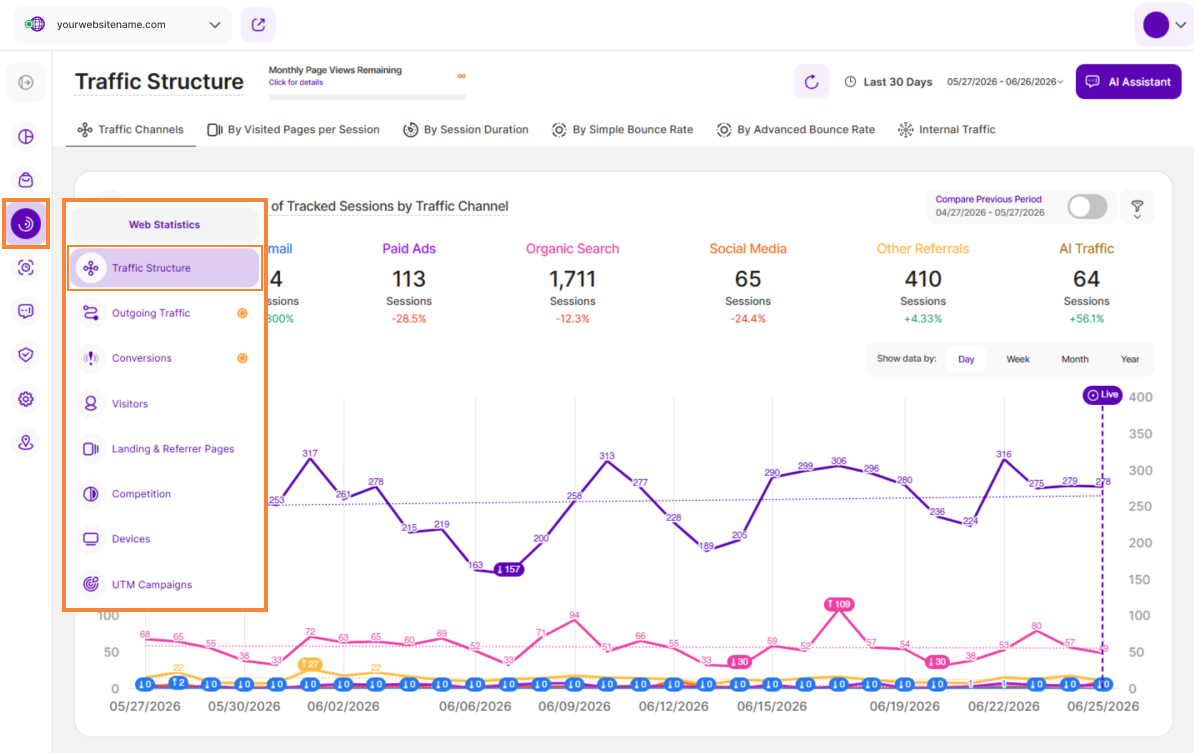
Within the traffic structure submodule, you'll find comprehensive details about how your incoming website traffic is organized.
Determine which channels bring the most traffic to your website and uncover hidden gems that might be attracting valuable visitors. With diverse origins for your website traffic, you can now delve into the performance of each source through:
Set the Date
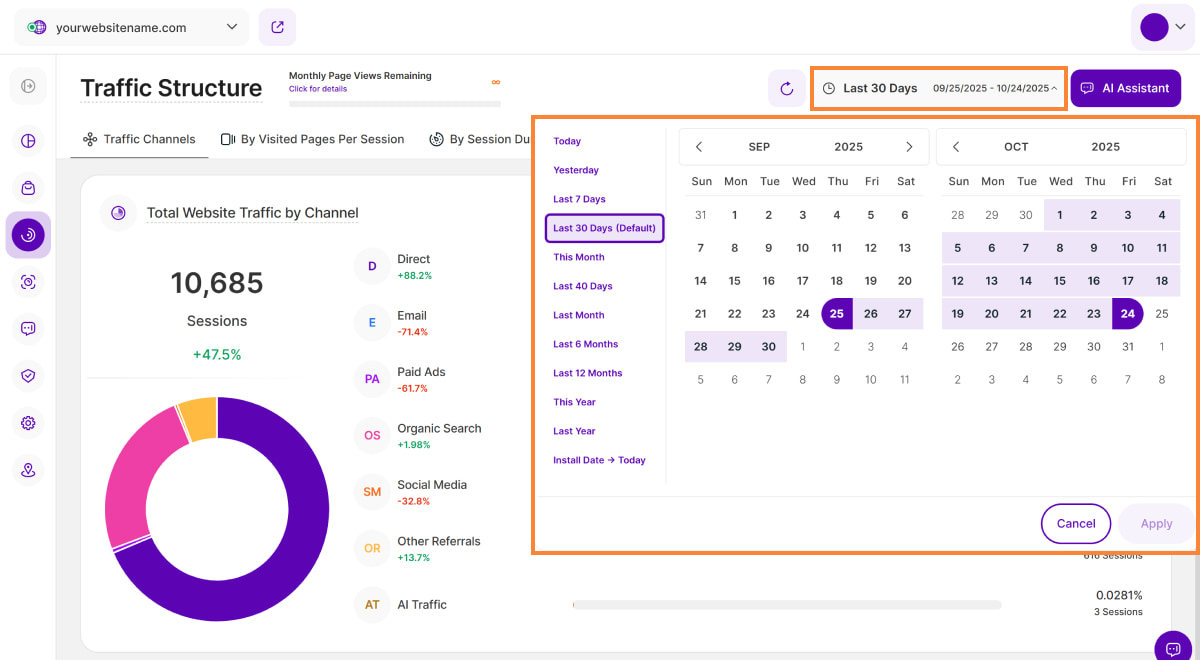
Right above the tiles, you can see a date picker. This enables you to select a certain time period, or specific day, for which you want the Dashboard's data to correspond.
It is crucial to limit the presentation of data to specific dates or timeframes during which you executed potential campaigns or implemented other strategies. This will allow you to assess the effectiveness of these actions and use the insights gained for future planning.
Important Notes:
- We only track data for this module from the moment it has been released.
- The app now remembers previously set segments, filters, filter templates, and date intervals, even when you navigate away from the page, log out, or log back in. When your session expires or you close the tab, it automatically switches back to the default setting of "Last 30 Days."
Some General Hints
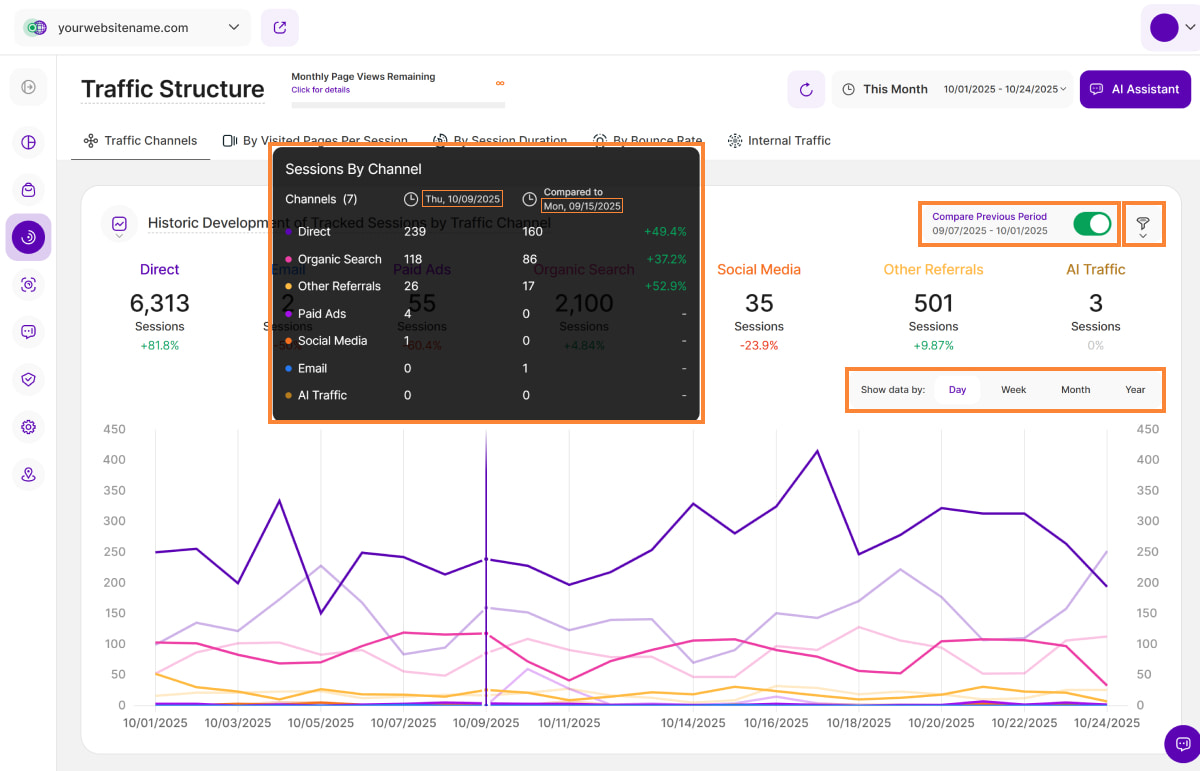
- What's New? Tooltips now display the abbreviated day of the week wherever dates are available. This will help you identify trends and analyze website traffic in relation to the days of the week.
- A lot of elements contain options to hover information or further actions. Just let your cursor run over various elements and discover how much data is actually packed into the view.
- On each tab, you'll find the option to compare the data. When you enable the Compare radio button, a second line (lighter shade) will be added to the graph for each metric. These lines will show data from the preceding time period before the one selected. You now have two options, Compare Previous Period and Compare Year over Year.
- You have the option to show the data by day, week, month or year. As a result, if the chosen period to study is this week, the preceding period would be the same number of days but prior to the current week.
- "Apply filtering" option is available on all of the report blocks.
Data Visualization Options
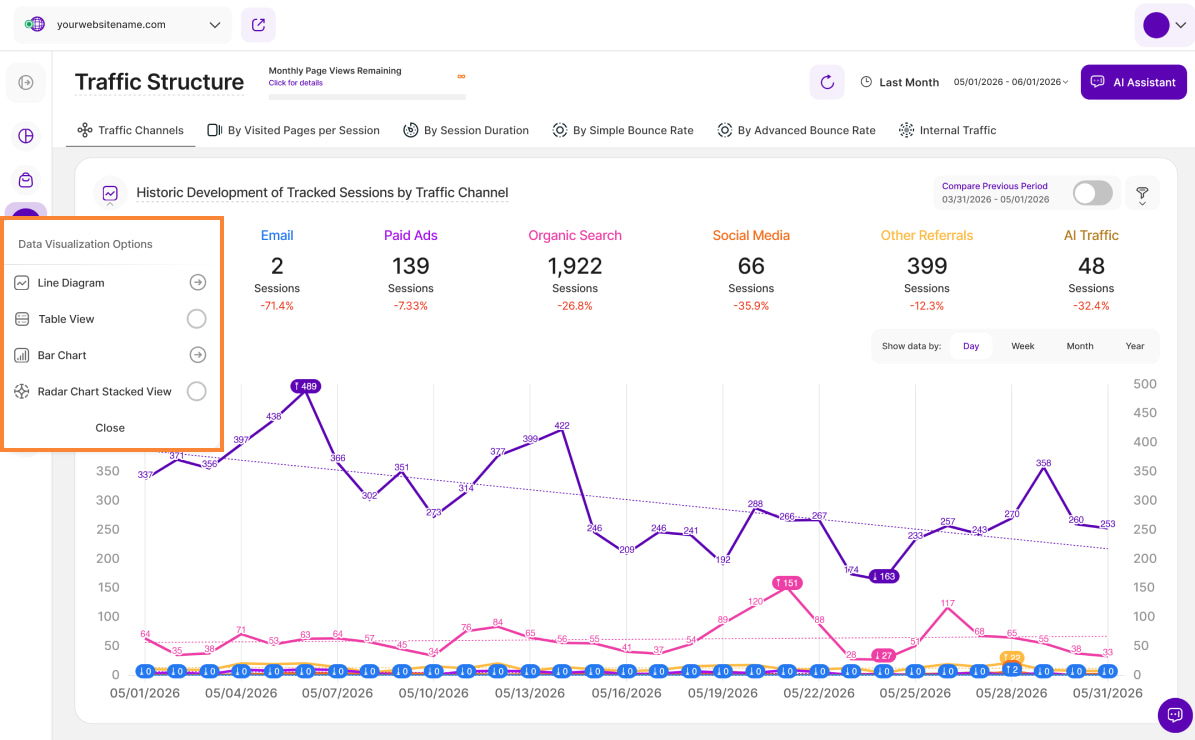
See your traffic data like never before! We're excited to announce improvements to the report blocks within the Traffic Structure module. Now, you have even more control over how you visualize your traffic data with the introduction of Data Visualization Options!
Whether you prefer bar charts, line graphs, or other formats, you can now visualize your traffic data in a way that clicks for you. This makes it easier to grasp trends and patterns, ultimately leading to better decisions.
Explore the following visualization options available for the Traffic Structure report blocks:
Line Diagram View
Line diagrams serve as the backbone of data visualization, adept at illustrating trends and patterns over time. Picture a series of data points resembling stepping stones across a river; a line chart connects these points, forming a visual bridge that unveils the trajectory of your data journey.
Continue reading to learn more about the different line diagram views and line styling options.
Important Hint: To have a better perspective on the data provided in the chart, simply click on each KPI above the graph to choose or deselect it. Enable only those that interest you, or keep them all enabled for a more comprehensive look.
Line Diagram
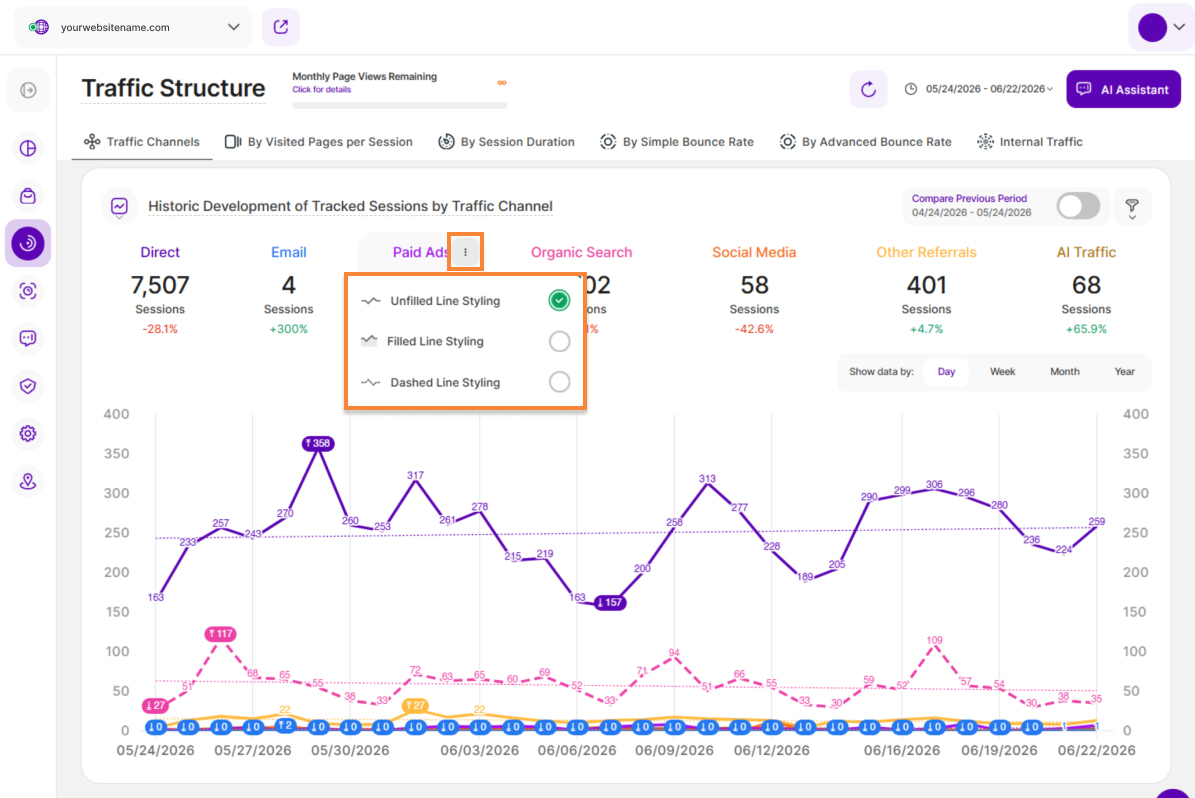
Line diagrams, commonly known as line charts, excel at presenting trends by connecting data points with a line. This data representation makes it easy to observe or analyze how a certain KPI evolves over time, making it ideal for tracking website traffic, sales growth, or any other metric with a narrative.
Want to tailor the way your data is visualized? Click the three-dot icon next to each KPI to unlock the following line styling options:
- Unfilled Line Styling
- Filled Line Styling
- Dashed Line Styling
By experimenting with these options, you can customize your data visualization to best suit your needs and effectively communicate your findings.
Line Chart Stacked
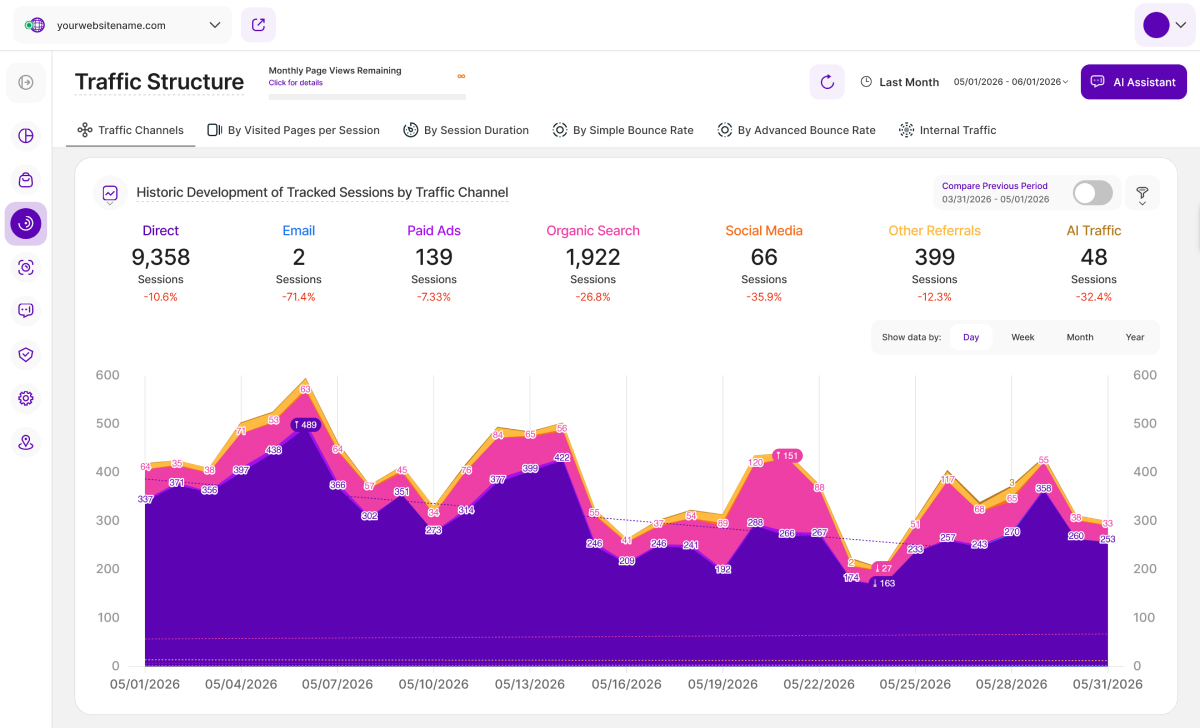
A stacked line chart has lines that do not intersect since they are cumulative at each position. In a stacked 100% line chart, the lines reach a total of 100% of the axis range at each point.
Stepped Line Chart
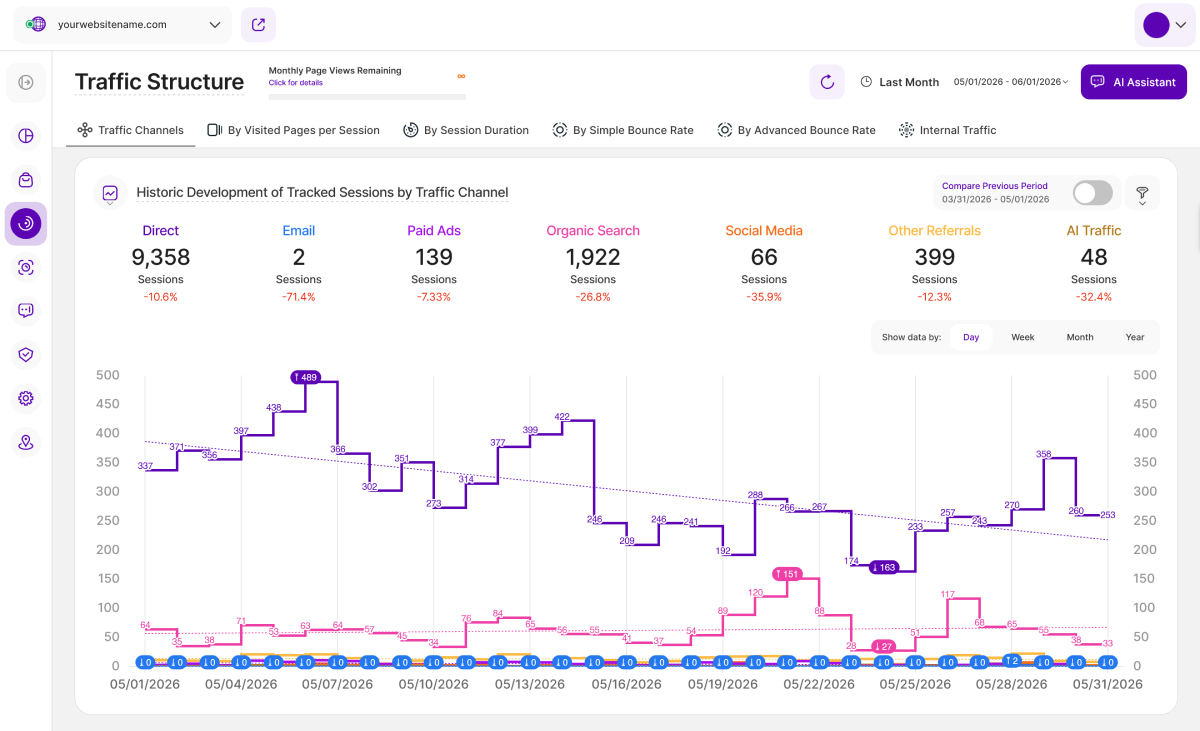
Stepped line charts are a type of line chart that connects data points using horizontal and vertical steps to demonstrate discrete changes over time. This format is appropriate for data acquired on a regular basis, such as daily sales figures.
Table View
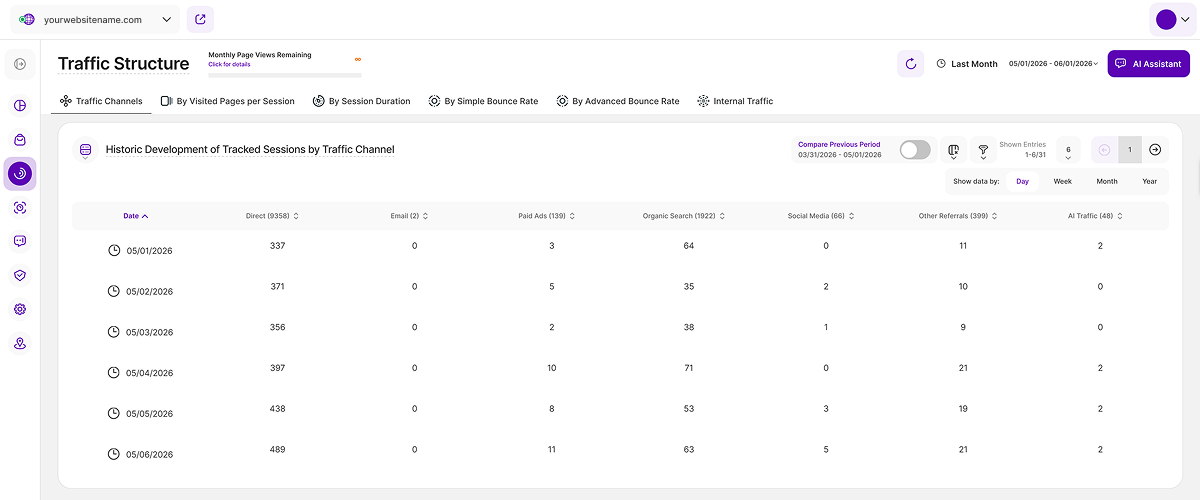
Need to examine specific values or compare data points side-by-side? The table view offers a different perspective on your data, transitioning from a visual representation to a detailed breakdown. It presents your information in a clear, tabular format, with each data point occupying its own cell.
The table is divided into the following columns:
- Date
- Direct
- Paid Ads
- Organic Search
- Social Media
- Other Referrals
- AI Traffic
Bar Chart
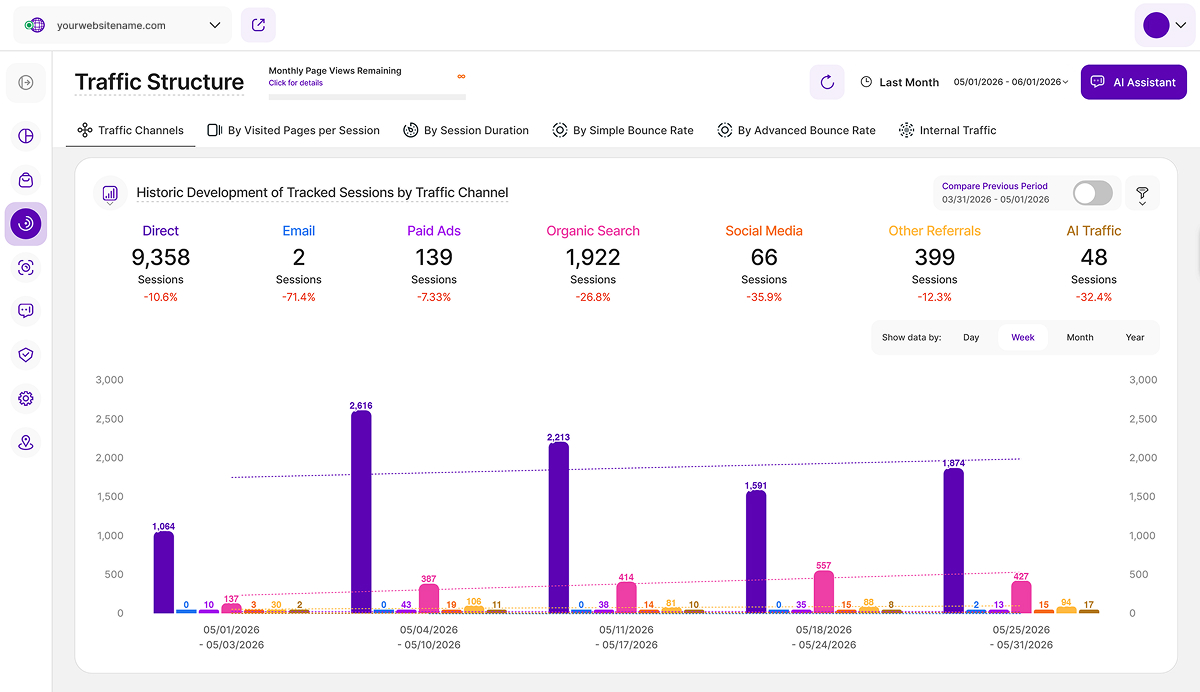
Moving on to another data visualization powerhouse, let's explore bar charts! This type of chart excels at demonstrating how different KPIs compare to one another. Each KPI is represented by a rectangular bar whose height is directly proportionate to the relevant value.
This makes bar charts helpful for determining which category has the highest or lowest value.
Radar Chart Stacked View
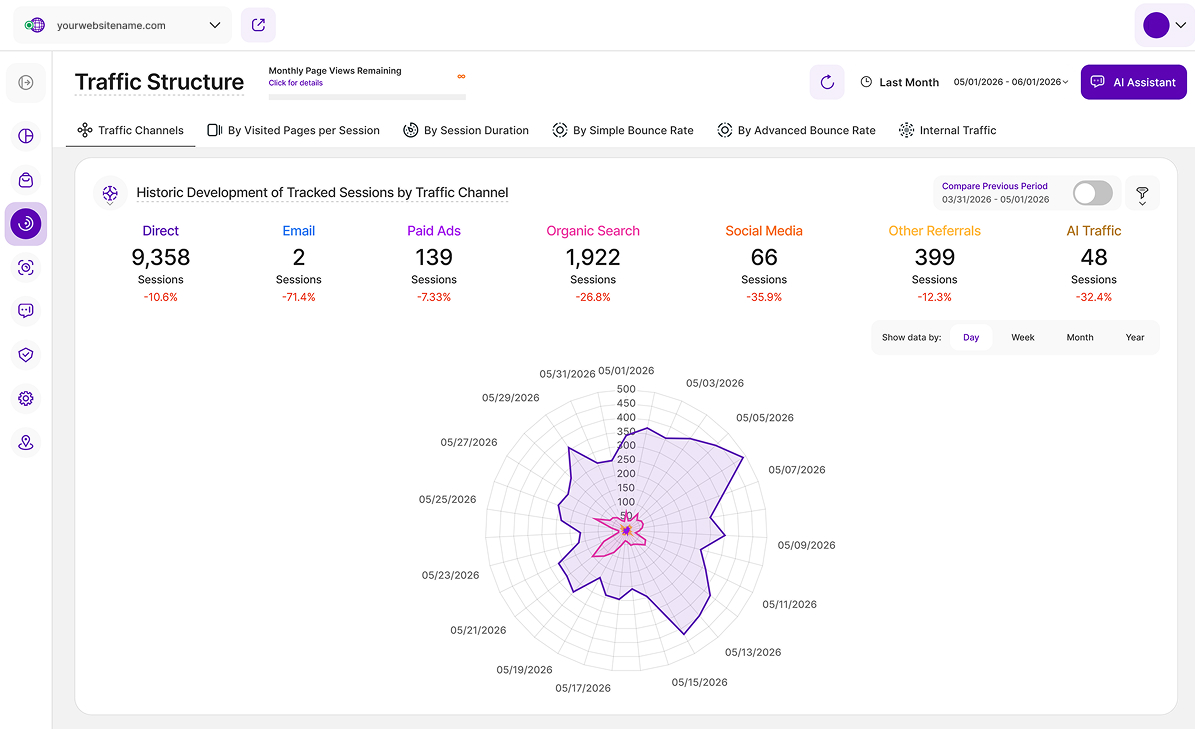
Radar chart stacked view is a great tool for displaying performance information. You can easily determine which KPIs are strong points and those that may need some enhancement by comparing variables on the same chart. They are thus effective tools for evaluating performance and making strategic decisions.
Each variable has a central axis. All axes are aligned radially, with equal distances between them, while the scale remains constant. Grid lines that connect axis to axis are commonly used as guides. Each variable value is shown on a separate axis, and all variables in a dataset are joined to form a polygon.
Filters for Traffic Structure
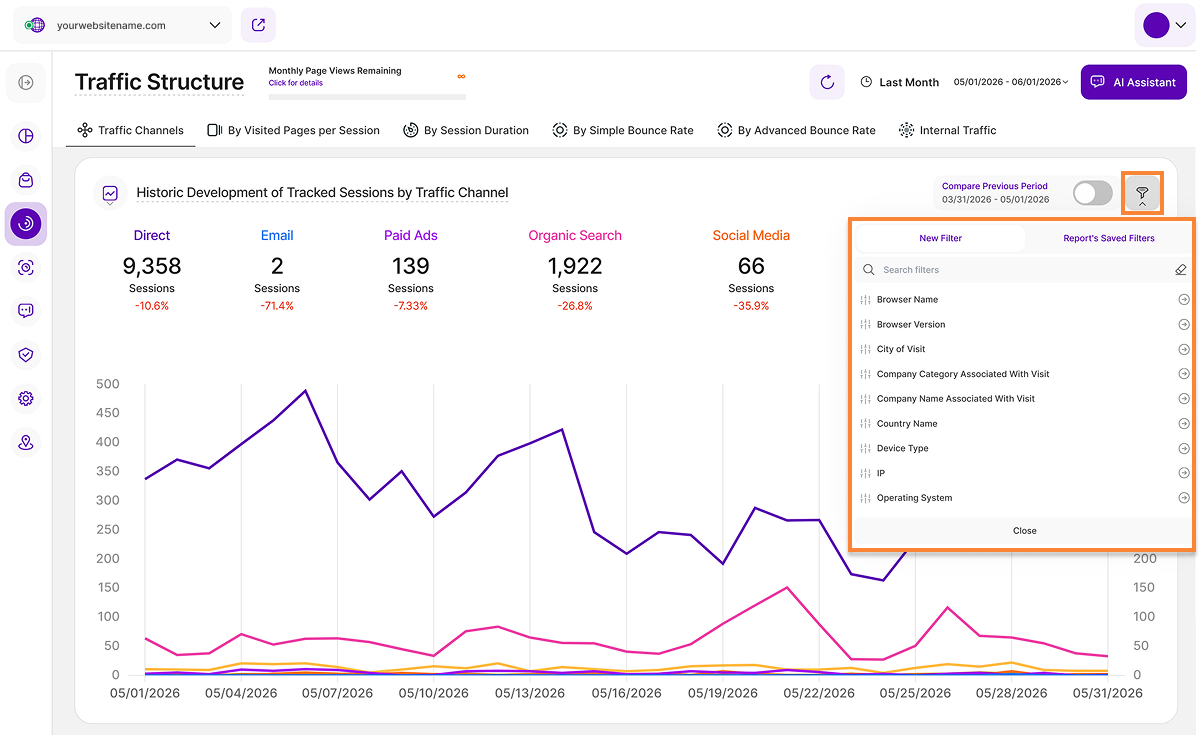
The Traffic Structure submodule provides invaluable insights into how visitors interact with your website. To gain granular understanding, filters are your most powerful tool.These filters are consistently available across all report blocks of this submodule, giving you the flexibility to apply one or several at once to segment and analyze your incoming traffic with high precision.
| Filter Category | What It Filters and Why |
| Browser Name | Filter the data by browser name (e.g., Chrome, Safari) to ensure your website is optimized for your website visitors' preferred viewing environment. |
| Browser Version | Identify and prioritize fixes for any technical issues related to specific browser versions. |
| City of Visit | Drill down into visitor location data to analyze website performance in specific cities, which is useful for local targeting. |
| Company Category Associated With Visit | For B2B analysis, segment visitors by industry category to validate which traffic channels are successfully delivering your target website visitors. |
| Company Name Associated With Visit | Analyze website traffic from specific companies to identify highly engaged organizations. |
| Country Name | Explore website traffic on a country-specific level. |
| Device Type | Understand how your website visitors access your website by filtering data based on device type (e.g., desktop, mobile). |
| IP | Use the IP filter to isolate specific IP addresses (like key partners or clients), allowing you to segment your website traffic to monitor their activity and tailor their online experience. |
| Operating System | Filter data by OS (e.g., Windows, macOS) to identify and fine-tune your website for compatibility issues that may affect your website traffic. |
| Page URL | Use this filter to view data only from visitors who were directed to your website from a specific external source URL. |
| Screen Resolution | Essential for optimization, this filter ensures your website's design looks optimal across all screen sizes and resolutions. |
| UTM Campaign Filter | Easily filter your data by specific UTM campaign parameters to measure which specific ads or channels are successfully driving traffic. |
To start filtering, just click the filter icon. Choose your first filter criterion (e.g., "Country Name") and select the specific value you want to focus on (e.g., "United States"). Once your first filter is applied, you can add more by clicking the Add New Filter button to refine your search further. If you need to remove any filters, click the minus icon (-) next to it, or select Remove All Filters to start fresh.
To save a filter combination, click Save set filters for report block, give it a name, and hit Save Changes. You can quickly reuse this set later.
To edit or delete a saved template, click the pencil icon next to the name. You can rename the template or select Delete Template (we'll ask you to confirm deletion first).
Traffic Channels
This tab dives deeper into your website's traffic, helping you understand where your visitors come from. It's divided into two key sections:
- Historic Development of Tracked Sessions by Traffic Channel
- Total Website's Traffic By Traffic Channel
The first step in analyzing your traffic is to have an overview of the traffic channels. In addition to identifying the primary traffic channels, direct and organic, you must also understand the distinctions between all of your other traffic sources and how they are categorized.
Below you find a breakdown of how the platform uses a session's referrer to associate it with a traffic channel. A more detailed csv.-file of how individual referrers are classified can be DOWNLOADED HERE.
- Direct: This refers to sessions who come to your website by directly typing your website's URL into their web browser's address bar. In general, when the session's referrer is empty it is classified as direct.
- Email: Traffic that originates from email marketing campaigns. It's tracked when specific tags are included as parameters in those URLs contained within your email campaigns forwarding to your website.
- Paid Ads: Traffic that comes from search engine results of paid advertising (either across search ads or due to a targeting strategy).
- Organic Search: This traffic comprises sessions who discovered your website through search engine results like those from Google or Bing which are unpaid and displayed as natural search results.
- Social Media: Traffic that originates from social media platforms such as Facebook, Instagram, LinkedIn, Twitter, and other similar platforms.
- Other Referrals: A session is linked to this channel if it has a referrer defined/known, but the platform is unsure about which traffic channel to associate with that referrer. These referrer can be various internet sources and are distinct from search engine referrals.
- AI Traffic: All sessions contained in this channel were forwarded to your website having one of the following referrers (these are NO visits of AI platforms/agents/LLMs themselves to your website):
- ChatGPT: chatgpt.com
- Claude: claude.ai
- Microsoft Copilot: copilot.microsoft.com
- DeepSeek: chat.deepseek.com
- Google Gemini: gemini.google.com
- Meta AI: meta.ai
- Mistral: chat.mistral.ai
- Perplexity type A: perplexity.ai
- Perplexity type B: www.perplexity.ai
This overview will provide you with insights into how visitors reach your website and enable you to make informed decisions to enhance your online presence.
Enhancing Traffic Data Accuracy with GET Parameters
To improve the categorization of traffic channels, you can use GET parameters. Our platform uses referring websites and/or URL parameters to assess the traffic's source and its structure.
You MUST add both the “channel” and “category” fields in each parameter after the landing page URL.
The format is as follows: landing page URL + ?_channel=[channel]&_category=[category]
For example, your landing page URL is www.yourwebsitename.com and you want to set the channel to 'social' and the category to 'instagram', the formatted URL would be: www.yourwebsitename.com?_channel=social&category=instagram.
Here are some more examples of URLs with parameters:
- https://www.myserver.com/?_channel=email&_category=gmail
- https://www.site.com/?_channel=search&_category=bing
- https://www.example.com/?_channel=paid&_category=google
The possible channels are listed below while the category is free to set:
- email: Assigned to Traffic Channel Email
- paid: Assigned to Traffic Channel Paid Ads
- search: Assigned to Traffic Channel Organic Search
- social: Assigned to Traffic Channel Social Media.
- unknown: Assigned to Traffic Channel Other Referrals.
To name a few possible categories: Gmail, Yahoo, Facebook, Instagram, Pinterest, etc.
To make this information easily accessible to you, we've prepared a CSV file that shows how we categorize URLs by traffic channel.
Historic Development of Tracked Sessions by Traffic Channel
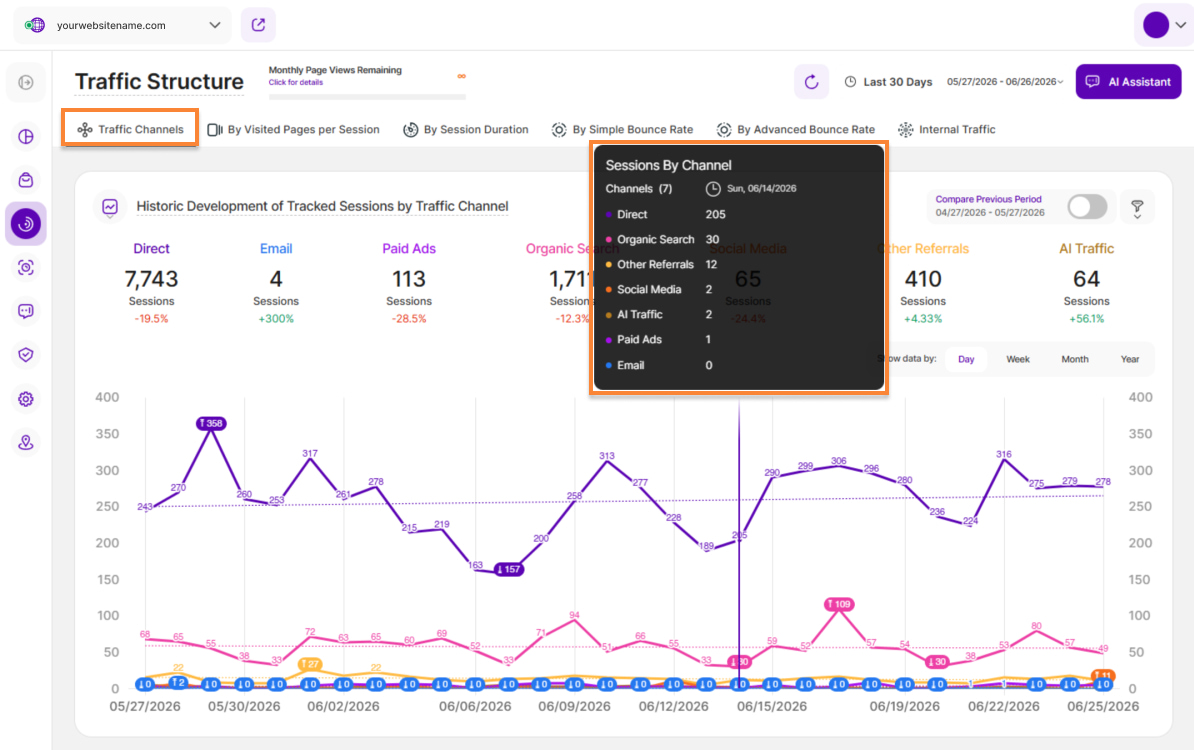
This report block shows how tracked sessions have developed over time, broken down by traffic source. It helps you understand which channels are driving traffic to your site and how their performance changes over time.
Click here for instructions on how to add GET parameters, to associate your incoming traffic more custom to each traffic channel.
Click on the traffic channels to display or hide the data in the line chart. You can also select whether the data should be shown by day, week, month, or year. Additionally, you can compare the selected period with the previous one.
Hovering over a data point displays the following details:
- Channels: A list of all the traffic channels.
- Sessions: This shows the total number of sessions for each traffic channel during the date range you've selected. If you've turned on the comparison, you'll also see a column with the session counts from the previous period, so you can easily compare performance.
- Percentage Change: A percentage comparison of the current data with the previous equivalent period. A green percentage indicates improvement, while red signifies a decline.
Total Website Traffic By Channel
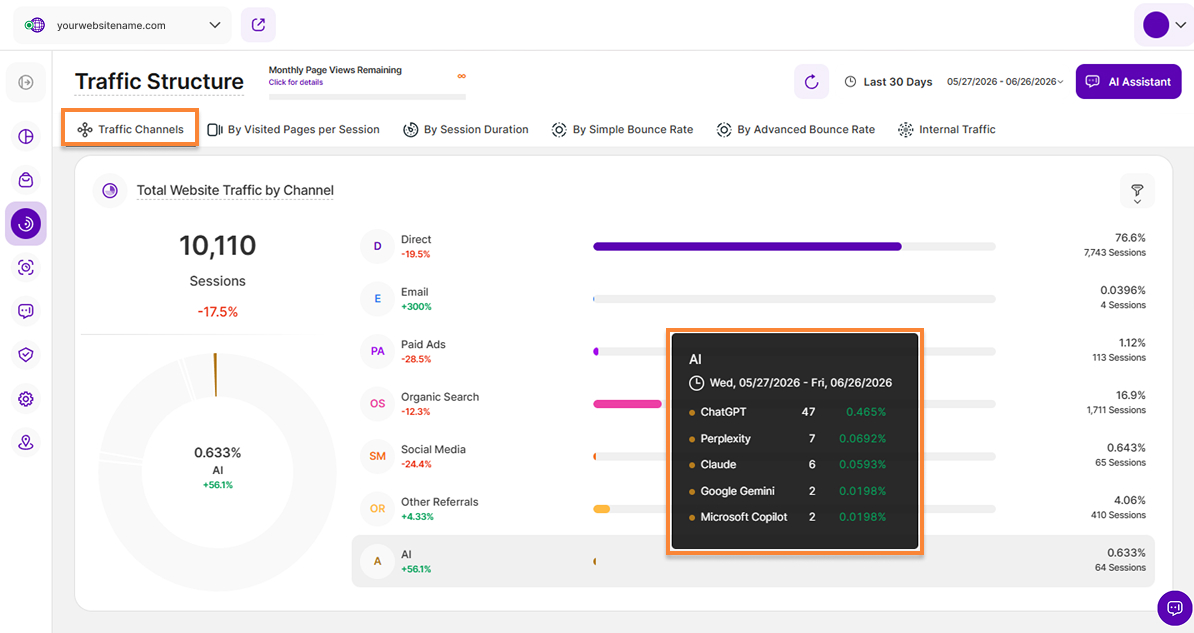
Now that we have identified each of the traffic channels, let's delve into understanding the data we have collected. This report block shows how your website traffic is distributed across different channels. Hover over the list to see how many visitor sessions came to your website from each channel. You can also hover over the donut chart sections to reveal the percentage breakdown.
Click here for instructions on how to add GET parameters, to associate your incoming traffic more custom to each traffic channel.
For Email category, note that association of visits with traffic channels are based on HTTP referrers. Sometimes the HTTP referrer is forced to be set as empty by an external platform we have no control over – this could lead to a result that a visit coming from a email channel is categorized as direct traffic.
Tooltips for Paid Ads Channel
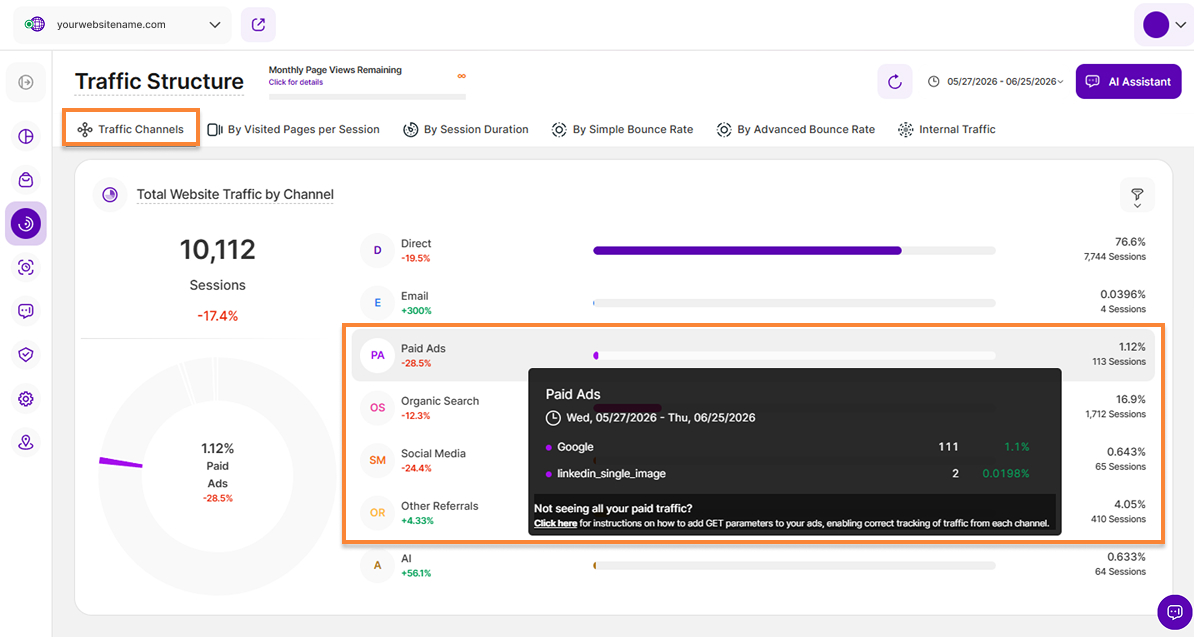
If you're not seeing all your paid traffic, click on the "Paid Ads" section to open the tooltip. Then, click the "Click here" link within the tooltip to learn how adding GET parameters to your paid ads can help you categorize them more effectively and ensure more accurate traffic data.
By Visited Pages Per Session
Now that you've explored your traffic sources, delve into engagement with the Visited Pages Per Session metric. This subtab is divided into two sections which will unlock insights into how visitors interact with your content:
Average Page Visit Count Per Session Overall
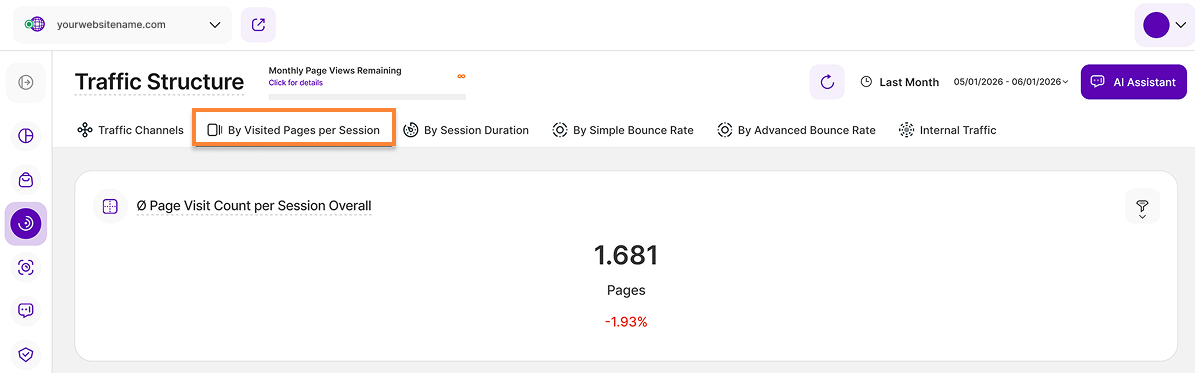
This report block shows the average number of pages viewed per session by your visitors during the selected time period.
To generate more accurate results, days with zero data will not be included in the average. Additionally, the average is based on unique page views, so if a page is viewed multiple times during a session, it will only be counted once.
Ø Pages per Visit by Traffic Channel
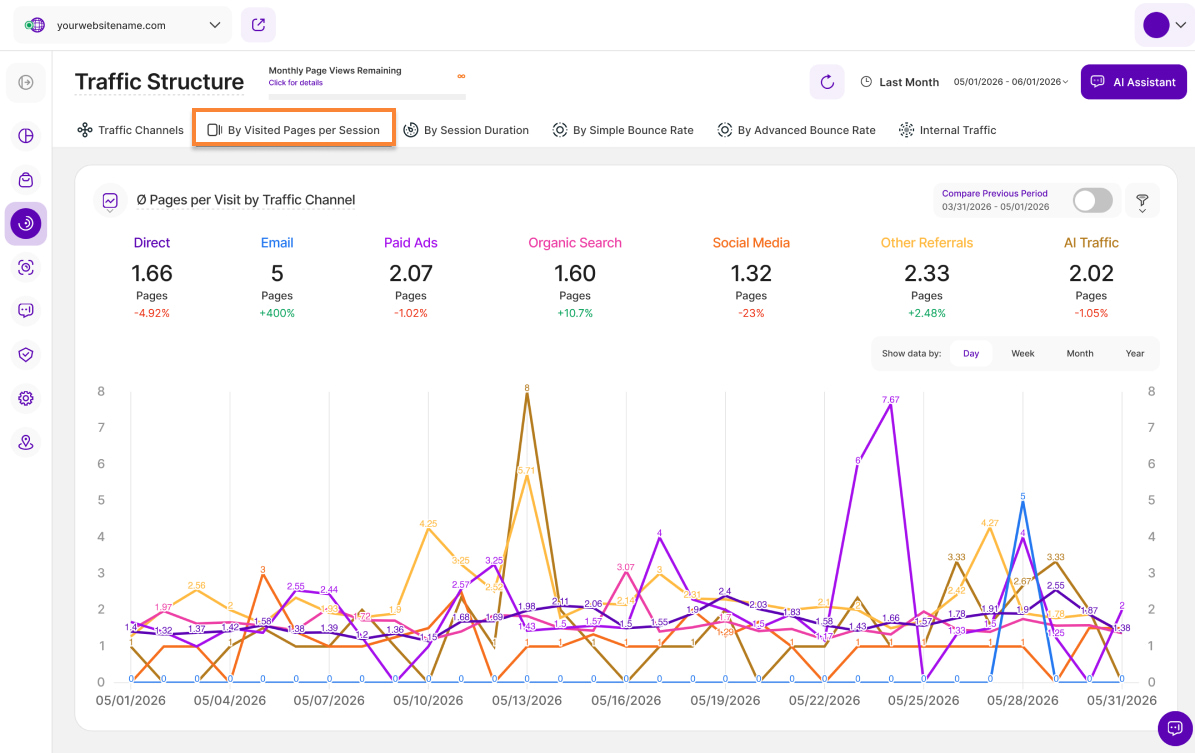
This report block shows the development of the average number of pages viewed by visitors who arrived at the site from different traffic channels during the selected time period.
Click on the traffic channels to display or hide the data for each channel in the line chart. You can choose to view the data by day, week, month, or year. Additionally, you can compare the selected time period with the previous one. Hovering over the lines will show more detailed information.
By Session Duration
This subtab empowers you to identify which traffic channels drive the most engaged visitors by analyzing session duration. This is divided into two report blocks:
Average Session Duration Overall
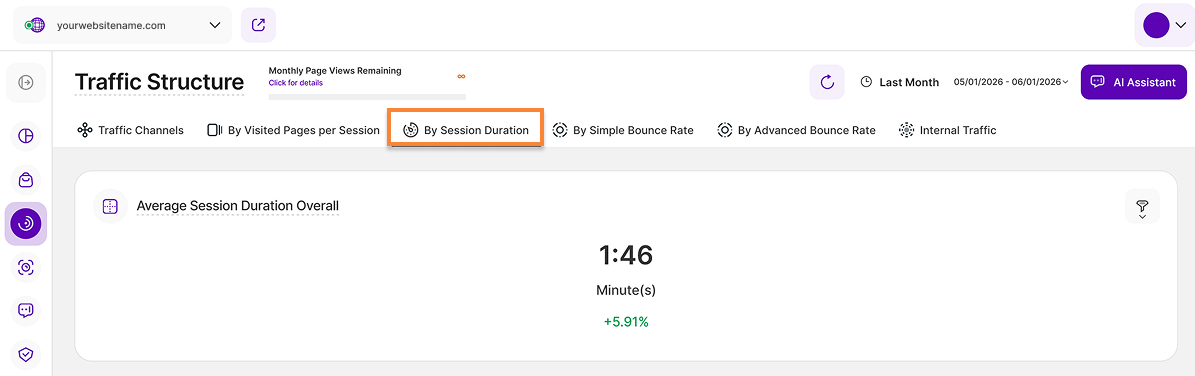
Average Session Duration is the average length of all sessions during the selected period.
How we calculate it: We sum the exact duration of every page view within a session. Using a precise end-of-visit trigger, the platform accurately measures the time spent on the final page of a visit, including sessions consisting of just a single page.
What it includes: It tracks the total time a page remains open before the tab is closed or navigated away from. Unlike “Active Viewport Time”, it includes periods when the browser window is out of focus or inactive.
Important Note: Because our new calculation now correctly captures the final page visit, you may notice longer average session durations in newly collected data compared to your historical data.
Average Session Duration by Traffic Channel
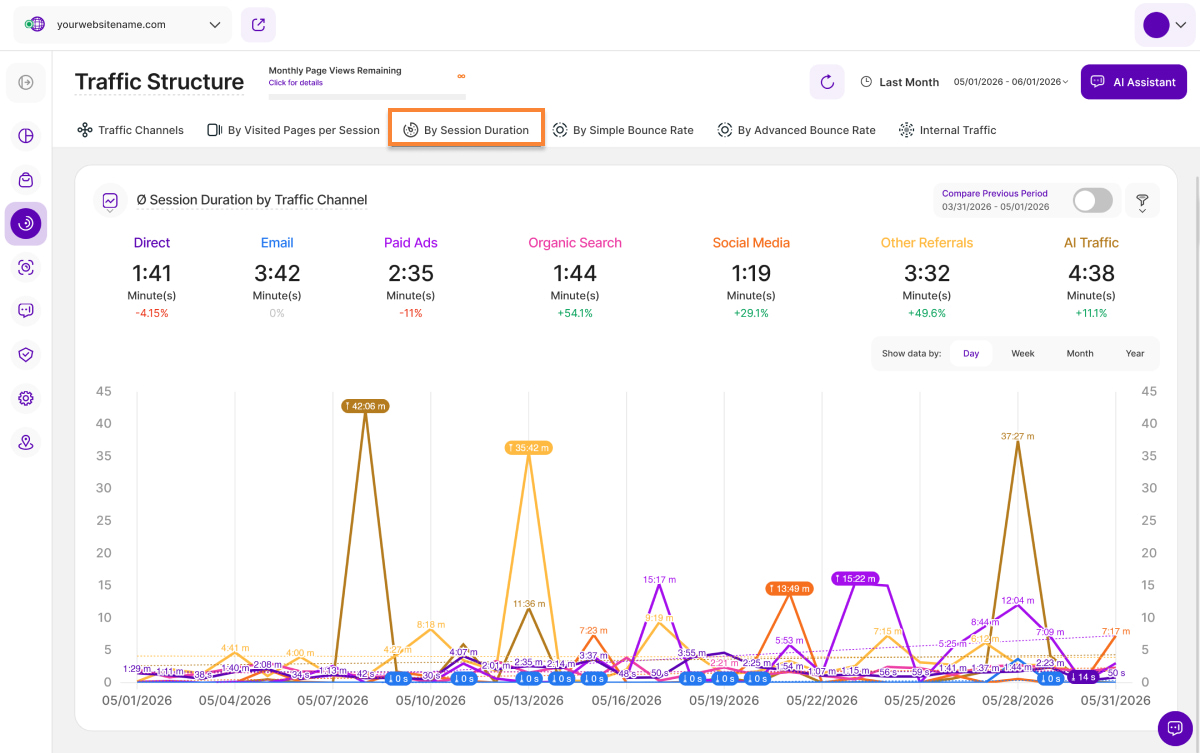
This report block shows a line diagram illustrating the average session length over all visitors visiting your site during the selected timeframe.
Hints: Click on the channels to display or hide the data for each specific channel in the line chart. You can also choose to view the data by day, week, month, or year. Additionally, a comparison with the corresponding previous period is available. Hover over the lines for more detailed information.
By Simple Bounce Rate
This subtab empowers you to identify traffic channels with the lowest bounce rate, showcasing which sources drive the most engaged visitors. It is divided into two sections:
Bounce Rate Overall
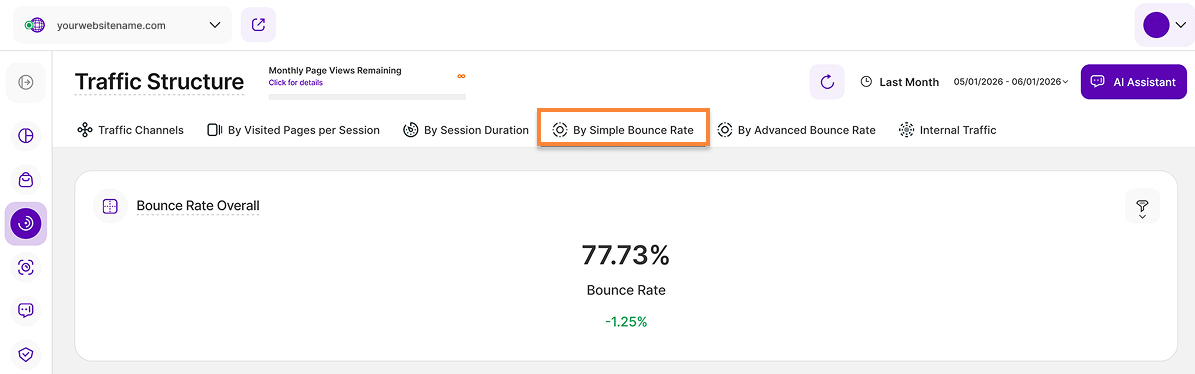
This report block shows your website's bounce rate for the selected time period. The bounce rate represents the percentage of visitors who left your site after viewing only one page. It doesn’t matter how long the visitor stayed on the page or how they left. A "bounce" occurs when the visitor has only one interaction with your website.
Hint: A decrease in the bounce rate percentage indicates an improvement in website performance.
Ø Bounce Rate by Traffic Channel
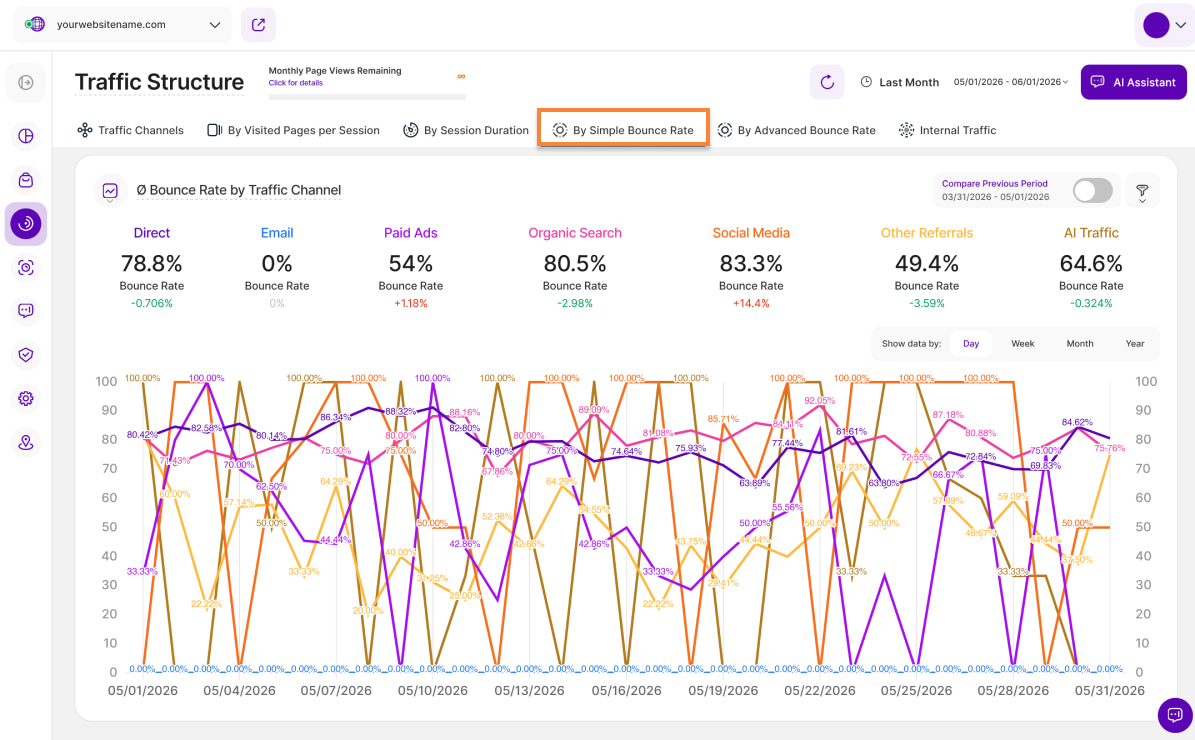
This report block shows how the website's bounce rate have developed over time, broken down by traffic source. It helps you understand which channels are driving traffic to your site and how their performance changes over time.
Click here for instructions on how to add GET parameters, to associate your incoming traffic more custom to each traffic channel.
Click on the traffic channels to display or hide the data in the line chart. You can also select whether the data should be shown by day, week, month, or year. Additionally, you can compare the selected period with the previous one. Hover over the lines for more detailed information.
By Advanced Bounce Rate
This tab helps you to analyze traffic using the Advanced Bounce Rate metric. By excluding low-engagement sessions, it provides a clearer view of which traffic sources drive meaningful visitor engagement and which channels may benefit from optimization. It is divided into two sections:
Advanced Bounce Rate Overall
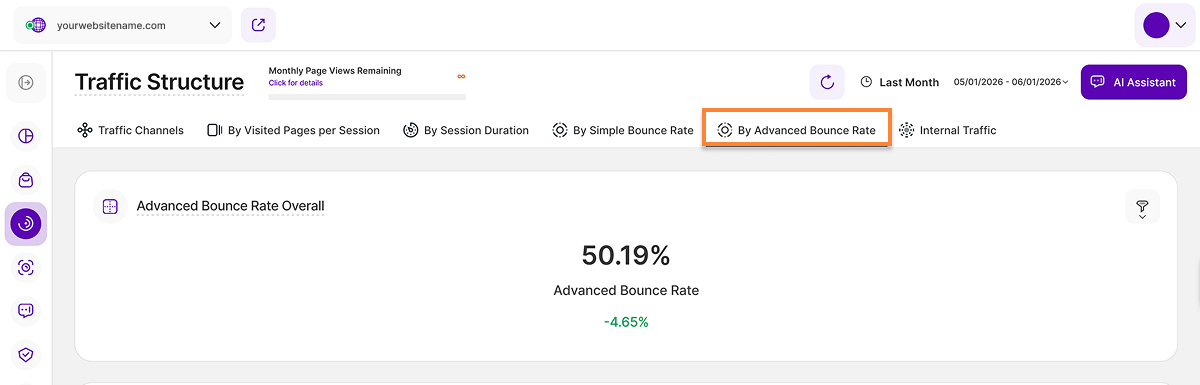
This report block displays your website's overall Advanced Bounce Rate for the selected time frame. The Advanced Bounce Rate is a more refined engagement metric designed to identify visitors who leave your website without meaningfully interacting with it.
A session is considered as a bounce under the Advanced Bounce Rate only if all of the following conditions are met:
- The session duration is less than 10 seconds
- No conversion event was triggered during the session
- No manual or auto-tracking event was triggered during the session
- The session contains only 1 page view (so hasn't visited more than 1 page)
Important Hint: The Advanced Bounce Rate is typically lower than the Simple Bounce Rate as it has the three extra additional criteria considered in its calculation, therefore reducing the number of bounced sessions.
Ø Advanced Bounce Rate by Traffic Channel
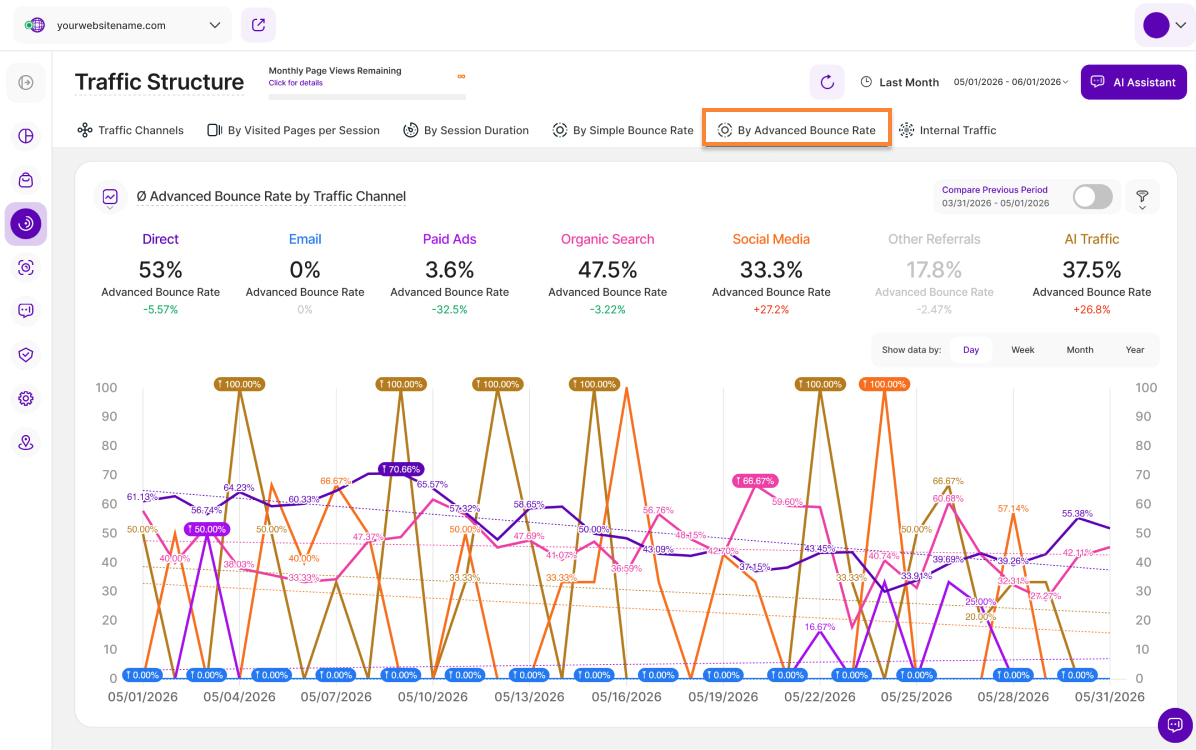
This report block tracks the average Advanced Bounce Rate per traffic channel within the selected time period. The percentage indicator below each channel shows the variance compared to the previous period, allowing you to spot engagement improvements or declines at a glance.
Click on the traffic channels to display or hide the data in the line chart. You can also select whether the data should be shown by day, week, month, or year. Additionally, you can compare the selected period with the previous one. Hover over the lines for more detailed information.
Internal Traffic
This sub-module provides detailed insights into the internal traffic of your website. Internal traffic describes the number of page views generated in the selected period by sessions that have already visited at least one other page on the website. It does not matter where the website session originally came from.
Internal Page Views vs. Overall Page View Traffic
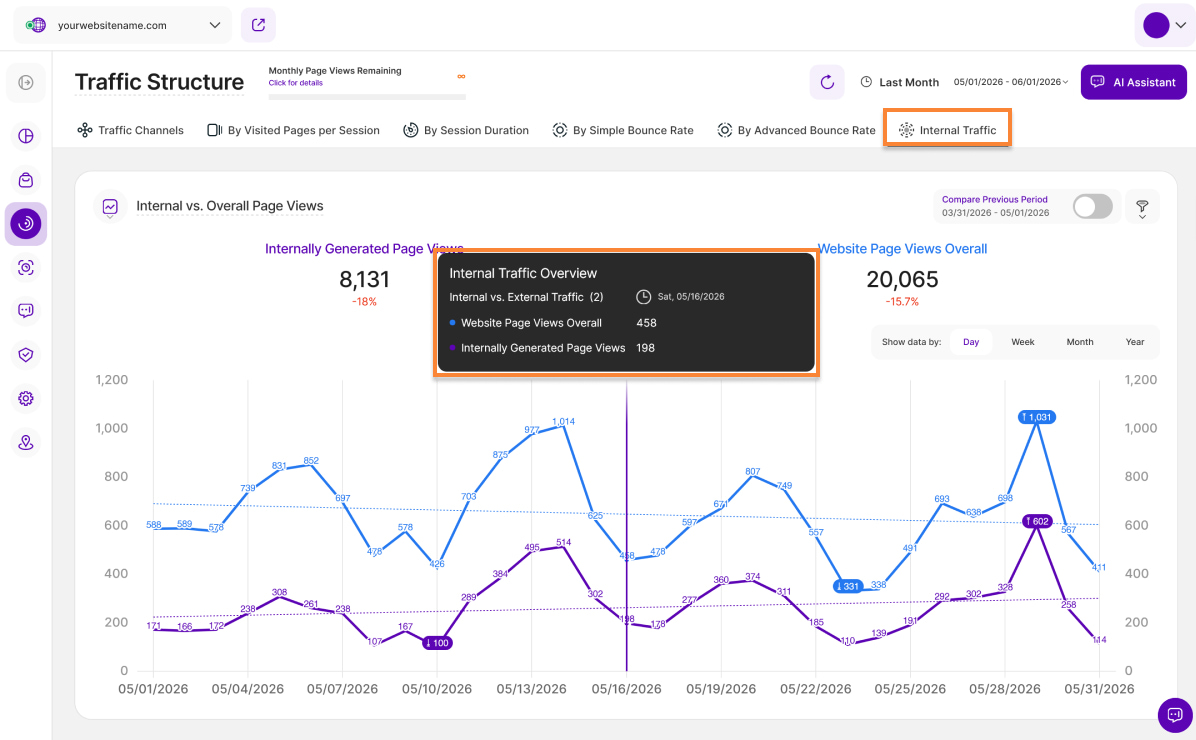
This report block compares how many of your website pageviews are at least "2nd level" (i.e. the corresponding session had previously visited at least one other website page - regardless of where the session originally came from) with your total website pageviews.
Example of a session calculation (independent of the original referrer of the session, as described above):
- Session 1 visits 1 page on the website
- Session 2 visits 4 pages on the website
- Session 3 visits 3 pages on the website
Total website traffic: 8 page views (1 + 4 + 3)
Internal traffic: 5 page views (4 + 3 minus the first page of each session)
Internal vs. overall traffic ratio: 5 / 8 = ~62.5%
Note: All sessions with an internal referrer are counted under the “Direct” traffic channel. See Traffic Channels for more information.
Control the dashboard's data display by selecting a time period or specific day with the date picker. The refresh button beside it, allows you to update the data instantly within your dashboard without a full page reload.
The graph visually displays the proportion of page views, enabling historical comparison of traffic from internally generated page views versus the website’s overall page views. Select both options to view overall trends or isolate a single source for focused analysis.
By default, the data is displayed using line charts with each KPIs represented by a line. We offer a variety of customizable data visualization options that you can choose from based on your preference.
As with other report blocks, the 'Compare' feature option (top right) enables comparison to the previous period or year-over-year, when data is available.
To refine your data view, click the filter icon adjacent to the 'Compare' button. Saved filter templates are also available. Filter by browser name and version, visit location (city and country), company information, and other criteria.
The data can be grouped by days, weeks, months, or years. For more in-depth data, simply click on any data point.